Meta title: How to Use LinkedIn Boolean Search to Find Prospects
Meta description: Use LinkedIn Boolean search to find the right people fast. Learn operators, examples, and templates to prospect, recruit, and connect with precision.
Primary keyword: linkedin boolean search
Meta keywords: how to do a boolean search on linkedin, linkedin advanced search
Tl:dr: Q: How do you use LinkedIn Boolean search to find the right people faster?
A: Use operators like AND, OR, NOT, quotation marks, and parentheses to combine job titles, industries, and skills into precise search strings. Apply them in LinkedIn’s search bar or filters to narrow thousands of profiles down to a small, highly relevant list, so you can prospect, recruit, or connect with the exact people you need in minutes instead of hours.
Readtime: 8 mins
Slug: linkedin-boolean-search
How to Use LinkedIn Boolean Search to Find Anyone (The Complete Guide)
Most people use LinkedIn search like they use Google, they type a job title or keyword, hit enter, and scroll through thousands of irrelevant results hoping to stumble across the right person.
There's a better way.
LinkedIn Boolean search is an advanced search technique that lets you filter LinkedIn's 1+ billion users with surgical precision. Instead of typing "marketing manager" and getting 500,000+ vague matches, LinkedIn Boolean search combines specific operators AND, OR, NOT, quotation marks, parentheses to narrow results down to exactly who you're looking for.
Instead of getting 10,000 irrelevant results, you get 50 highly qualified prospects who actually match your ideal customer profile.
Whether you're recruiting, prospecting for sales, looking for partnership opportunities, or job hunting, learning how to do a Boolean search on LinkedIn gives you a massive competitive advantage. This guide breaks down every operator, shows you real-world examples, and gives you copy-paste templates you can use immediately.
What Is LinkedIn Boolean Search?
LinkedIn Boolean search is a query method that uses logical operators to refine search results. You can run a Boolean search on LinkedIn by combining keywords with operators like AND, NOT, and OR during your search.
Think of it like advanced filtering for people. Instead of relying on LinkedIn's basic dropdown menus, which often return broad, messy results, LinkedIn Boolean search lets you build custom search strings that combine multiple criteria at once.
For example:
Basic search: "Product Manager" Result: 2 million+ profiles including students, retired managers, and people who haven't updated their profiles in years.
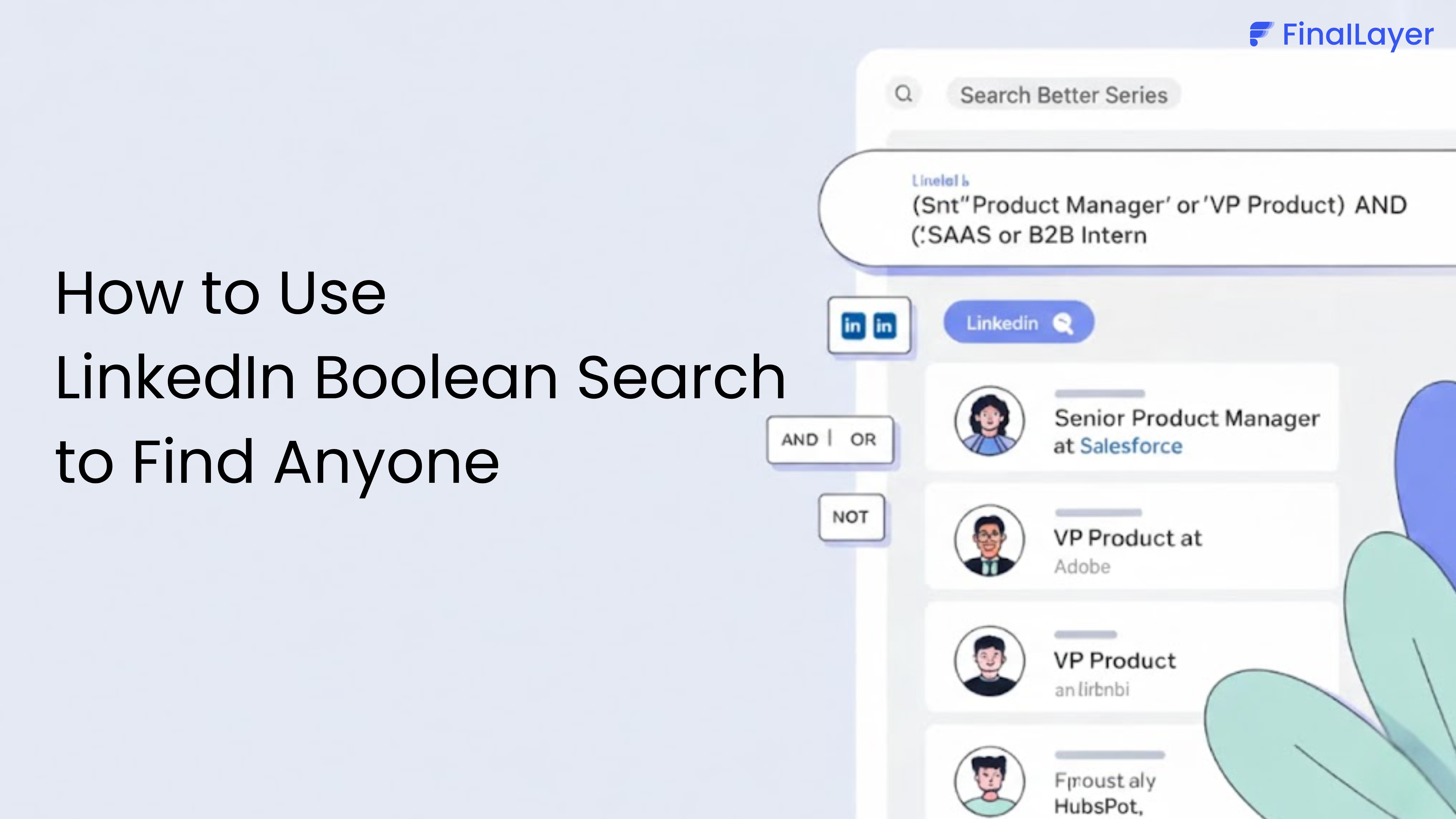
LinkedIn Boolean search: ("Product Manager" OR "VP Product") AND (SaaS OR B2B) NOT Intern Result: Senior product leaders actively working in SaaS or B2B companies, with interns excluded.
That's the difference. Precision over guesswork.
The 5 LinkedIn Boolean Search Operators You Need to Know
There are five core operators that power every LinkedIn Boolean search. Master these, and you can find anyone.
1. Quotation Marks (" ") Exact Phrase Match
For an exact phrase, enclose the phrase in quotation marks. For example, type "product manager".
Without quotes, LinkedIn treats each word as a separate search term. With quotes, it searches for that exact phrase only.
Example:
- Chief Revenue Officer (without quotes) → Returns profiles mentioning "Chief," "Revenue," or "Officer" anywhere
- "Chief Revenue Officer" (with quotes) → Returns only profiles with that exact title
When to use it: Job titles, specific certifications, company names, or any multi-word phrase you need matched exactly.
2. AND — Include Both Terms
The AND operator tells LinkedIn: "Show me profiles that contain both of these terms."
Example: Marketing AND Director → Profiles must mention both "Marketing" and "Director"
Critical rule: LinkedIn only recognizes these operators when they're in ALLCAPS. If you type "and," "or," or "not" in lowercase, LinkedIn treats them as regular search words, not operators.
3. OR — Include Either Term
The OR operator broadens your search by showing profiles that contain any of the terms you list.
Example: CEO OR Founder OR "Managing Director" → Profiles mentioning any of these titles
When to use it: When multiple job titles mean the same thing, or when you want to cast a wider net across related roles.
4. NOT — Exclude a Term
The NOT operator removes profiles that contain a specific word or phrase.
Example: "Software Engineer" NOT Intern → Senior engineers only, no interns
When to use it: Filtering out students, retired professionals, consultants, or any keyword that dilutes your results.
5. Parentheses ( ) — Group Operators
When you combine multiple operators, parentheses tell LinkedIn which part to evaluate first. Think of them like the order of operations in math, parentheses always go first.
Example: (CEO OR Founder) AND (SaaS OR Fintech) NOT Consultant
This searches for CEOs or Founders working in SaaS or Fintech, but excludes anyone with "Consultant" in their profile.
When to use it: Any time you're combining AND, OR, and NOT in the same search. Parentheses keep your logic clean.
Where to Use LinkedIn Boolean Search
LinkedIn Boolean search works in specific search fields. Here's where it's supported:
Standard LinkedIn (free accounts):
- Main search bar (searches entire profiles, headline, About, experience, skills)
- Title field (under "All Filters" → Keywords → Title)
- Company field (under "All Filters" → Company)
Sales Navigator & Recruiter (paid):
- Keyword field
- Job Title field
- Company field
- Boolean search will work in the keyword field in Recruiter and LinkedIn.com, and will work in the Company, title, and keyword field in Sales Navigator.
Important distinction: When you use LinkedIn Boolean search in the main search bar, it scans the entire profile. When you use it in the Title field, it only searches current job titles. Know which one you're using.
How to Do a Boolean Search on LinkedIn: Step-by-Step
Here's the exact process:
Step 1: Go to the LinkedIn search bar at the top of your homepage.
Step 2: Click "All Filters" to open LinkedIn advanced search options.
Step 3: Choose where you want to apply your LinkedIn Boolean search:
- Use the Keywords field to search entire profiles
- Use the Title field to search only current job titles
- Use the Company field to search by employer
Step 4: Build your search string using the operators above.
Step 5: Hit "Show results" and review.
Step 6: Refine as needed by adjusting your operators or adding/removing terms.
10 Copy-Paste LinkedIn Boolean Search Examples
Here are ready-to-use search strings you can copy and adapt:
1. Find startup founders in SaaS: (Founder OR "Co-Founder" OR CEO) AND (SaaS OR "Software as a Service") NOT Consultant
2. Find senior marketing leaders: ("CMO" OR "VP Marketing" OR "Head of Marketing") AND (B2B OR SaaS)
3. Find product managers with AI experience: "Product Manager" AND (AI OR "Artificial Intelligence" OR "Machine Learning")
4. Find HR directors in healthcare: ("HR Director" OR "People Director" OR "Head of HR") AND (Healthcare OR Hospital OR "Health Tech")
5. Find sales reps, excluding account managers: ("Sales Representative" OR "Sales Executive" OR BDR) NOT ("Account Manager" OR "Customer Success")
6. Find engineers with Python skills: (Engineer OR Developer) AND Python NOT (Intern OR Junior)
7. Find CFOs in fintech startups: CFO AND (Fintech OR "Financial Technology") AND Startup
8. Find consultants specializing in supply chain: Consultant AND ("Supply Chain" OR Logistics OR Procurement)
9. Find VPs in e-commerce: ("VP" OR "Vice President") AND ("E-commerce" OR "Ecommerce" OR Retail)
10. Find recruiters in tech: (Recruiter OR "Talent Acquisition") AND (Tech OR Technology OR SaaS)
LinkedIn Boolean Search Best Practices
Use exact phrases for job titles. Always wrap multi-word titles in quotes: "Chief Operating Officer" not Chief Operating Officer.
Test your search strings incrementally. Start simple, then add operators one at a time. This way you can see exactly what each addition does to your results.
Combine Boolean with LinkedIn's filters. Use LinkedIn advanced search filters (location, industry, company size) alongside your Boolean string for maximum precision.
Save your best searches. If you're using Sales Navigator or Recruiter, save high-performing LinkedIn Boolean search strings so you can rerun them or set up alerts for new matches.
Don't overload your search. Free LinkedIn accounts have limits on how many Boolean operators you can use. After you use more than 5 search operators, the results will begin to be throttled or not displayed at all. Keep it clean and focused.
Common LinkedIn Boolean Search Mistakes to Avoid
Using lowercase operators. and, or, and not won't work. They must be uppercase: AND, OR, NOT.
Forgetting quotation marks for exact phrases. Without quotes, LinkedIn treats each word separately, which can drastically change your results.
Mixing up the Title field and the main search bar. The Title field only searches current job titles. The main search bar searches entire profiles. If your search isn't returning the right people, check which field you're using.
Not using parentheses when combining operators. Without parentheses, LinkedIn can misinterpret your logic. Always group your OR statements in parentheses when mixing with AND or NOT.
Why LinkedIn Boolean Search Matters in 2026
With over 1.1 billion professionals on LinkedIn as of 2026, finding your ideal prospect is effectively like finding a needle in a digital haystack, unless you speak the algorithm's language.
Standard LinkedIn search hasn't kept pace with how crowded the platform has become. Basic filters return too many false positives, and manually sorting through hundreds of profiles eats up hours you don't have.
Learning how to do a Boolean search on LinkedIn is the difference between spending three hours prospecting and finding five qualified leads, versus spending thirty minutes and finding twenty.
Sales reps, recruiters, job seekers, and business owners who master LinkedIn Boolean search have a quiet but massive advantage over everyone still clicking through pages of irrelevant results.
Turn LinkedIn Boolean Search Into Real Conversations With FinalLayer
You've mastered LinkedIn Boolean search. You've found exactly who you need to connect with. Now comes the hard part: staying top-of-mind without burning out.
FinalLayer helps you turn those hard-won connections into an engaged audience by keeping you visible with consistent, high-quality posts, written in your voice, published on a schedule that never slips.