Most people spend hours perfecting their LinkedIn headline and About section, then completely ignore the one feature sitting right below it.
The LinkedIn Featured section is prime profile real estate. It sits just after your About section, before your recent posts and experience, making it one of the first things a visitor sees after reading your headline. Think of it as your personal highlight reel, a curated window into your best work, biggest wins, and most important offers.
Profiles with a completed LinkedIn Featured section receive up to 30% more profile views and connection requests than those without. Yet the majority of professionals either leave it empty or toss in a random post without any strategic thinking behind it.
This guide will show you exactly what to put in your LinkedIn Featured section, where to find it if you haven't set it up yet, and how to use it to generate real leads, not just profile views.
Where Is the Featured Section on LinkedIn?
If you're new to this feature, you might be wondering: where is the Featured section on LinkedIn?
It sits directly below your About section on your profile page. If you haven't added anything to it yet, it won't show up at all, it only becomes visible once you add your first item. If you don't have any content to feature, your Featured section will be hidden from people who view your profile.
To add it: go to your LinkedIn profile → click "Add profile section" → select "Recommended" → click "Add Featured." From there you can add posts, articles, external links, images, documents, or videos.
Where is the Featured section on LinkedIn on mobile? Tap your profile photo → View Profile → tap "Add section" → Recommended → Add Featured. The same options apply.
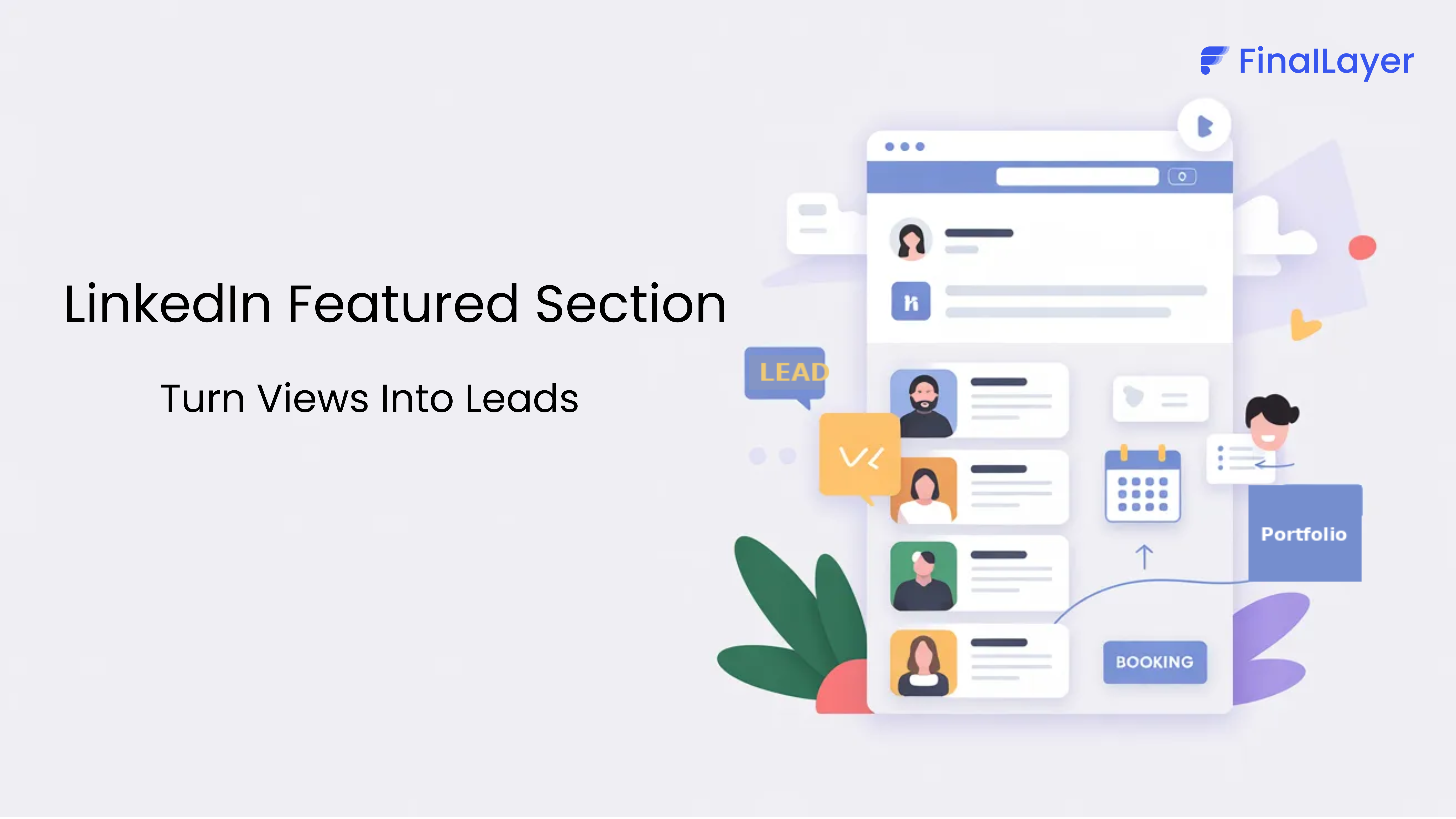
Once it's live, it renders as a scrollable row of visual thumbnails, images, link previews, and post cards, that immediately draw the eye of anyone landing on your profile.
Why the LinkedIn Featured Section Is a Lead Generation Tool in Disguise
Most advice about the LinkedIn Featured section treats it like a digital trophy cabinet, a place to show off your best posts or biggest accolades. That's fine, but it undersells what it can actually do.
The Featured section allows you to spotlight exactly what you want people to see first: your portfolio, media mentions, lead magnets, case studies, or high-performing posts. It actively works for you, shaping how others understand your value and why they should connect, hire, or collaborate with you.
When someone lands on your LinkedIn profile, they have a very short window of attention. Your headline answers who you are. Your About section answers what you do. Your LinkedIn Featured section answers why they should trust you, and where they should go next.
That "where they should go next" is where leads come from.
What to Put in Your LinkedIn Featured Section
The right content depends entirely on what you want your profile to do for you. Here's a breakdown by professional type:
If You're in a Corporate Role
Your LinkedIn Featured section should establish credibility and signal expertise to the right decision-makers, whether that's future employers, collaborators, or clients.
- An insightful post or article on a current industry topic that showcases your depth of knowledge
- A press mention, podcast appearance, or panel speaking slot
- Important company news or a milestone you were involved in
- A high-performing post that generated strong engagement and sparked conversation in your niche
The goal here is authority. Every item in your LinkedIn Featured section should answer the question: "Why should I trust this person's opinion?"
If You're a Business Owner or Consultant
For business owners, the LinkedIn Featured section should function as a quiet sales page, building credibility and driving action without being pushy.
- Your signature offer or a free resource (lead magnet, checklist, or guide)
- A client success story, testimonial, or case study with measurable results
- A link to your newsletter or website
- A post that captures exactly what you do and who you help
Use this space to showcase case studies, whitepapers, or client testimonials anything that builds credibility and pulls prospects down the funnel.
If You're a Freelancer or Creator
- Your strongest portfolio piece or client project
- A media feature or publication credit
- Your most-shared post or most-viewed article
- A booking link or discovery call page
How to Set Up Your LinkedIn Featured Section Step by Step
Setting up the LinkedIn Featured section takes less than five minutes. Here's the full process:
Step 1: Go to your LinkedIn profile on desktop (recommended for full functionality).
Step 2: Click "Add profile section" near the top of your profile.
Step 3: Select "Recommended" from the dropdown, then choose "Add Featured."
Step 4: Select your content type, post, article, link, or media upload.
Step 5: Add a compelling title and description for each item. These display as captions beneath your thumbnail and are worth writing carefully, a strong caption is often the difference between a click and a scroll-past.
Step 6: Reorder your items by dragging them. Put your strongest lead-generating piece first, this is what most visitors will see before they scroll.
Tip: You need at least two items added before LinkedIn lets you reorder them. Plan for three to five items from the start so you have full control over the sequence.
Your LinkedIn Featured section tells people what you do. FinalLayer makes sure your content keeps showing them why you're worth following, with consistent, on-brand posts written in your voice, published on a schedule that never slips.
prompt and optimize for better results.
LinkedIn Featured Section Best Practices
Keep It Tight 3 to 5 Items Maximum
More is not better here. Limit your Featured section to 4–6 high-quality items rather than showcasing everything possible. A crowded LinkedIn Featured section signals a lack of focus. A curated one signals authority.
Lead With Your Best Converting Item
Whatever drives the most valuable action, a booking link, a lead magnet download, a case study, put it first. Most visitors won't scroll through your entire LinkedIn Featured section, so position one is everything.
Use Custom Thumbnails and Titles
When you add a link to your LinkedIn Featured section, LinkedIn auto-generates a preview image and title from the Linkedin URL. Always override these with a custom image and a benefit-driven title. "Free LinkedIn Profile Audit" outperforms "LinkedIn Profile Tips" every time.
Match Items to Your Current Goal
Your LinkedIn Featured section is not a permanent display, it's a dynamic tool. If you're launching a new offer, put it first. If you're focused on newsletter growth, feature your newsletter sign-up page. Update it every quarter at minimum to keep it aligned with where you want to take people right now.
Think Visually
The LinkedIn Featured section is one of the most visual parts of your profile. Use images with clear text overlays, branded colours, and readable fonts. A visually strong LinkedIn Featured section stops the scroll. A plain white image with a link preview does not.
Common LinkedIn Featured Section Mistakes to Avoid
Leaving it empty. This is the most common and costly mistake. An empty LinkedIn Featured section is invisible, and a missed opportunity every single time someone visits your profile.
Featuring your most-viewed post instead of your most valuable one. High impressions don't always mean high intent. A post that went viral for a generic observation about work life is less valuable to feature than a post that speaks directly to your ideal client's problem.
Never updating it. A LinkedIn Featured section showing content from two years ago signals to visitors that you're not active. Keep it current.
No clear call to action. Every item in your LinkedIn Featured section should prompt a next step, click here, read this, book a call, download this. If your visitor doesn't know what to do after viewing your featured content, you've lost them.
Final Thoughts
If you haven't set up your LinkedIn Featured section yet, consider this your friendly nudge. It is one of the lowest-effort, highest-impact upgrades you can make to your LinkedIn profile, and it takes less than ten minutes to do properly.
The question isn't whether you should use it. It's what the first thing you want people to see when they land on your profile should be. Answer that, and your LinkedIn Featured section practically builds itsel.