> ## Documentation Index
> Fetch the complete documentation index at: https://finallayer.com/docs/llms.txt
> Use this file to discover all available pages before exploring further.
# Create LinkedIn Carousels (AI Generated)
Generate high-quality LinkedIn carousels instantly using FinalLayer, either directly from your post content or by writing your own prompt.
## **Method 1: Generate Carousel from Post (Recommended)**
Automatically convert your LinkedIn post into a ready-to-publish carousel.
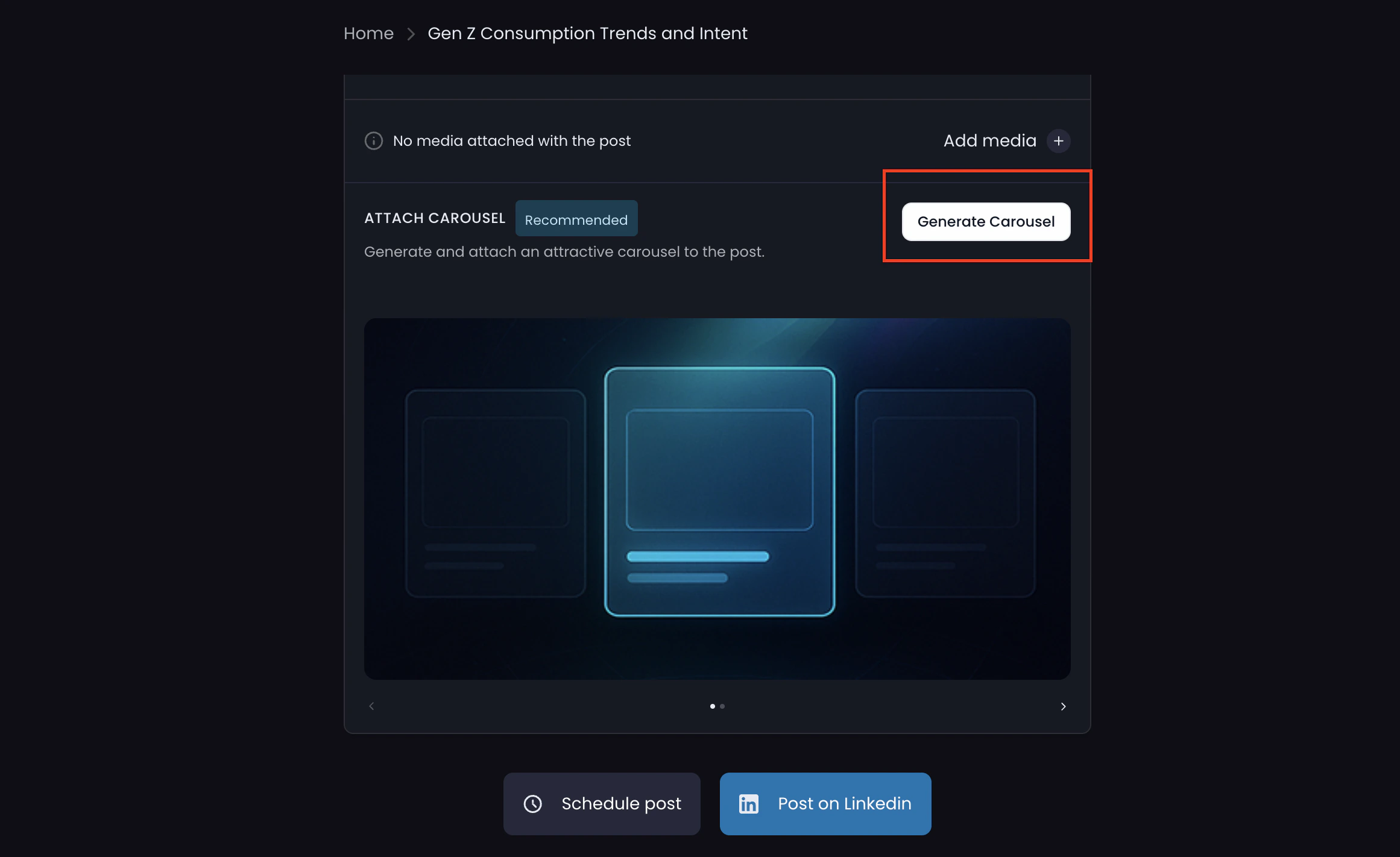 ### **Steps**
1. Create your personalized LinkedIn post using FinalLayer
2. Click **“Generate Carousel”** under the post editor
3. Our platform analyzes your post and generates **5–8 carousel slides**
4. Review the generated carousel
5. Click **“Post on LinkedIn”** to publish
## **Method 2: Generate Carousel with Custom Prompt**
Create a carousel using your own ideas, structure, or external references.
### **Steps**
1. Create your personalized LinkedIn post using FinalLayer
2. Click **“Generate Carousel”** under the post editor
3. Our platform analyzes your post and generates **5–8 carousel slides**
4. Review the generated carousel
5. Click **“Post on LinkedIn”** to publish
## **Method 2: Generate Carousel with Custom Prompt**
Create a carousel using your own ideas, structure, or external references.
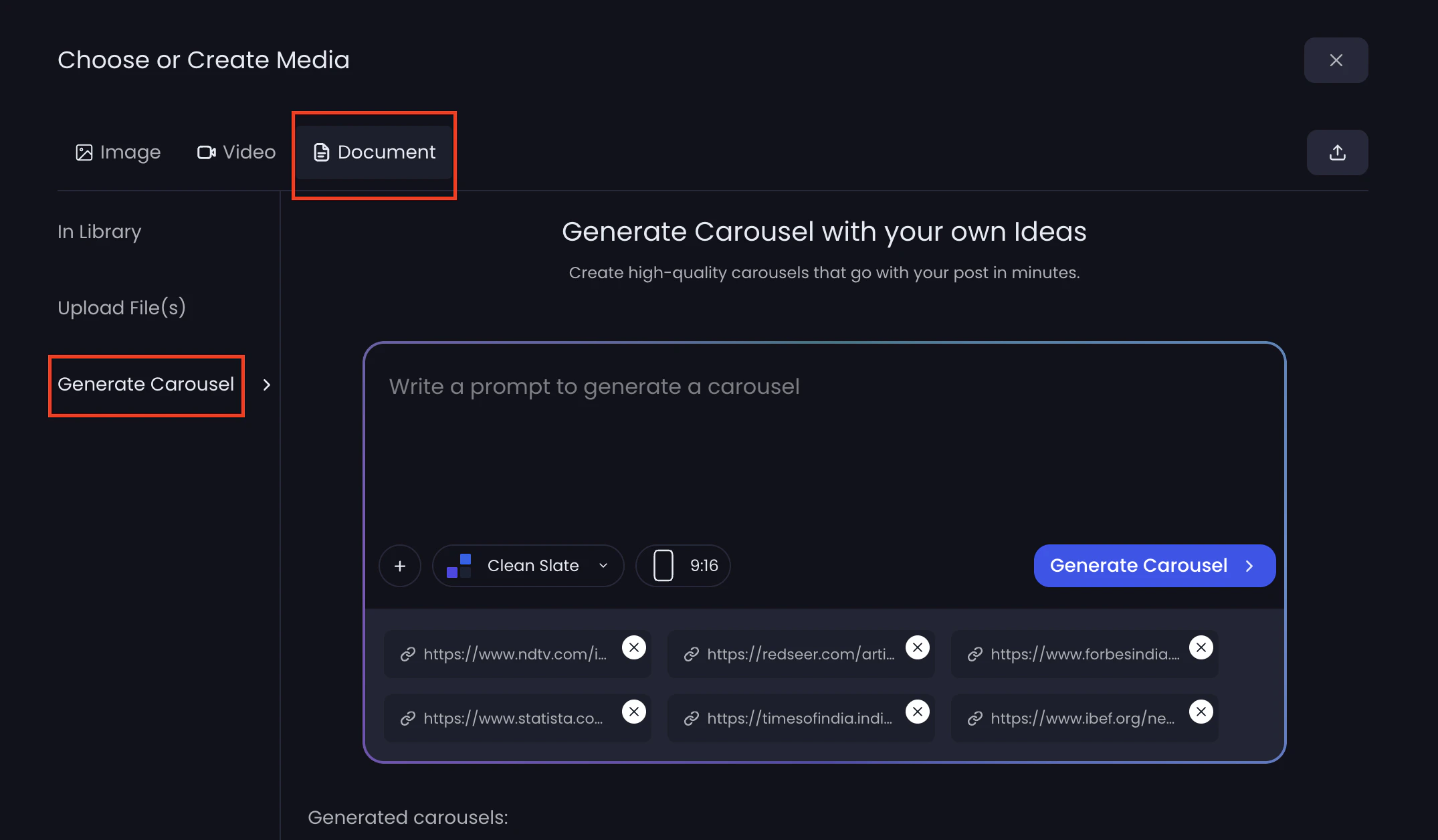 ### **Steps**
1. Create your LinkedIn post in FinalLayer
2. Click **“Add Media”** below the post
3. Select **“Document”**
4. Click **“Generate Carousel”**
5. Write a prompt describing your carousel
6. Choose:
* Aspect ratio (e.g., 9:16)
* Template/style
* Optional reference links
7. Click **“Generate Carousel”**
8. Select your preferred version
9. Click **“Attach to post”** and publish
### **Steps**
1. Create your LinkedIn post in FinalLayer
2. Click **“Add Media”** below the post
3. Select **“Document”**
4. Click **“Generate Carousel”**
5. Write a prompt describing your carousel
6. Choose:
* Aspect ratio (e.g., 9:16)
* Template/style
* Optional reference links
7. Click **“Generate Carousel”**
8. Select your preferred version
9. Click **“Attach to post”** and publish